
How to set different home and lock screen wallpapers on Android
Android can show one picture on the lock screen and another on the home screen. Until you set them separately, it shows the same image on both, so the split is something you set up yourself. It is worth the two minutes: each screen does a different job, and one picture rarely suits both.
Why the two screens want different pictures
The lock screen is what you see in a glance: a large clock and date at the top, notifications below, and few icons. A detailed scene has room to breathe there, as long as the top stays calm enough to read the time.
The home screen is covered in app icons and their labels, with a dock along the bottom. Fine, busy detail behind that grid makes every label harder to read. Big shapes, soft texture and dark, even areas work best.
There is a privacy reason too. Anyone who picks up your phone sees the lock screen. A personal photo can live on the home screen, behind your screen lock, while the lock screen shows something neutral.
Our style guide measures how calm the clock and icon areas are on real wallpapers. This guide is about giving each screen its own.
How Android keeps two wallpapers
Android tracks a home screen wallpaper (the “system” wallpaper in its developer reference) and, optionally, a separate lock screen one. Until you set a lock-only image, the one picture is, in Google's words, “shared between home and lock screen”. Apps got a standard way to set the two separately in Android 7.0.
That gives three outcomes whenever you set a wallpaper, whichever app or menu you use:
- Both puts one image on both screens.
- Home screen changes only the home screen.
- Lock screen changes only the lock screen.
A dependable order when you start from scratch: set your home screen picture with Both, then set the lock screen picture with Lock screen. To go back to one wallpaper everywhere, set it again with Both.
Where the choice lives on Pixel and Samsung
The full steps for each phone are in the lock and home screen section of our fitting guide. What matters here is where the screen choice appears, and what the makers say about it.
Google Pixel
The choice comes after Wallpapers & style and Change wallpaper. Google says “To adjust the lock and home screens separately, select between Lock screen or Home screen.” A later step reads “If available, select which screen shows the wallpaper”, and the page doesn't say which phones or Android versions lack it.
Samsung Galaxy
After you pick an image from the home screen's wallpaper menu, Samsung says “You'll be prompted to select Lock screen or Home screen for the new wallpaper. You can select both if desired.” You can also begin from the lock screen itself: “Start by touching and holding your Lock screen.” Samsung lists extra options, such as Frame and Effect, on One UI 6.1 and later. Its page is undated and doesn't cover older One UI versions.
Other Android phones
OnePlus, Xiaomi, Motorola and other makers build their own wallpaper menus, and the help pages cited here don't cover them. Look for a screen choice after you pick an image, usually from a long press on an empty part of the home screen.
Doing it in Flux on Android
The Flux app sets the wallpaper itself on Android, so you can pick the screen without visiting Settings:
- Open a wallpaper and tap Apply wallpaper.
- Under Apply to, choose Lock, Home or Both.
- The button names your choice, for example Set on lock screen. Tap it.
- Open a second wallpaper and set it on the other screen.
Flux pre-selects the screen you used last time (both screens on your first go), so check the choice before you tap. It hands Android the whole image, with no crop or position control of its own. If you want to place the image yourself, use your phone's wallpaper settings instead.
Get Flux on Google Play to try a pair.
Two pairings from the catalog
The numbers below were measured on these wallpapers for our style guide: average brightness of the top third, where the clock sits, from 0 (black) to 255 (white), and how much fine detail each band holds.
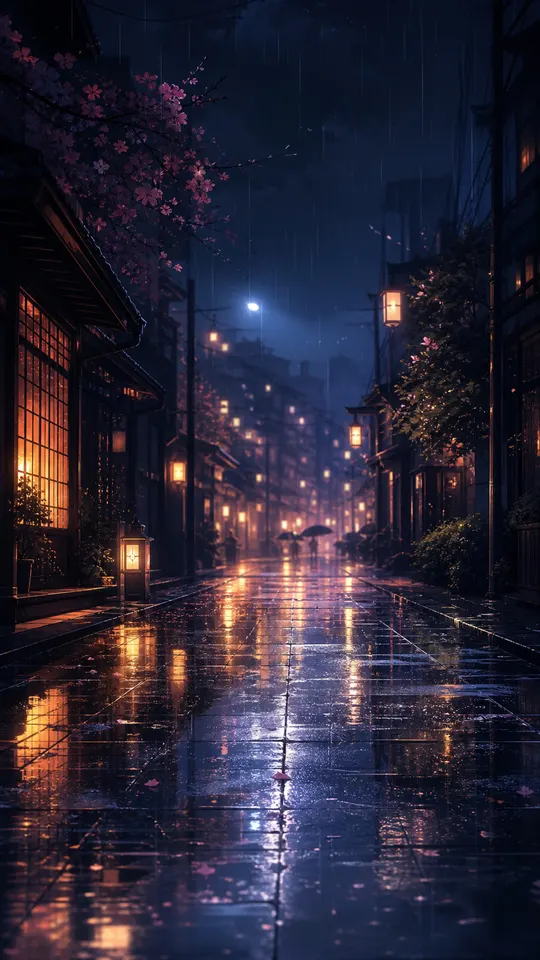
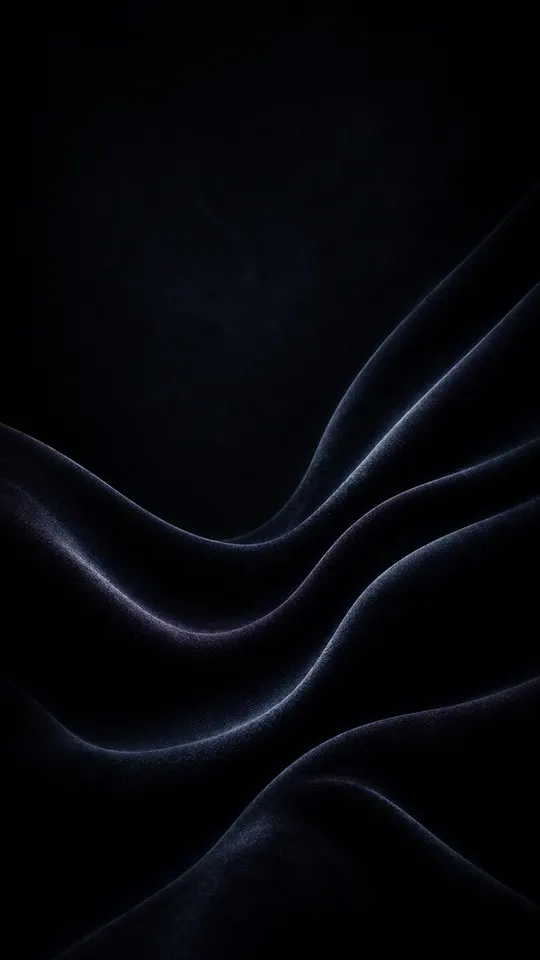
Night: Rainy Lantern Lane and Velvet Dune Swells
The pair at the top of this page. Rainy Lantern Lane has a dark top (23), so a white clock reads clearly, and a busy middle full of lanterns and reflections that only notifications cover. Velvet Dune Swells is the darkest of the measured set and among the calmest (top third 5, almost no detail), so icon labels stand out. More like it are in AMOLED and dark wallpapers.
Colour: Glossy Paint Splash and Blue Ring Segment
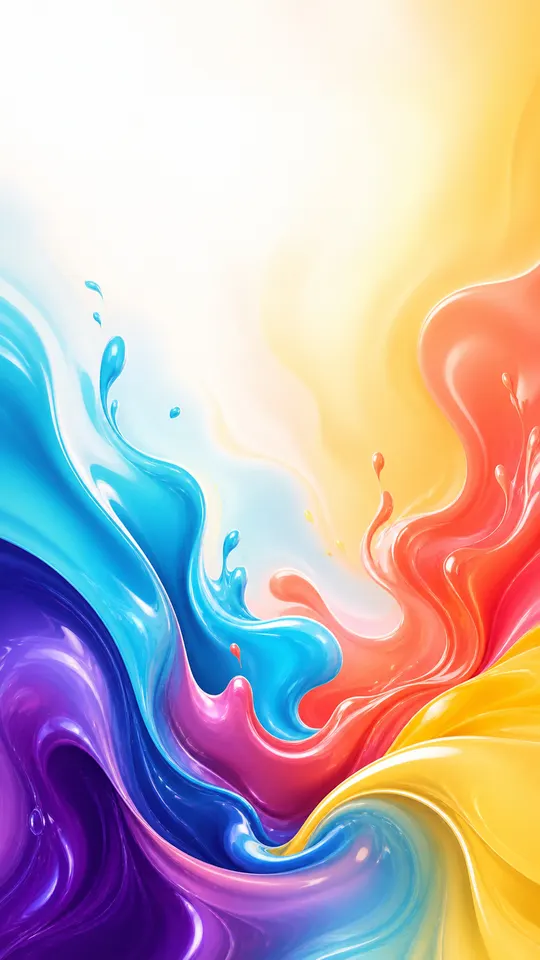

Glossy Paint Splash is all colour through the middle and bottom, which would fight a grid of icons but suits a lock screen. Its top is nearly white (244), so choose a dark clock colour if your phone offers one. Blue Ring Segment is a single large shape on a plain field (detail 0.3 to 0.7 in every band), and its blue echoes the splash. Find calm home screens like it in Minimal wallpapers, and more for your phone in Android wallpapers.
Troubleshooting
The wrong screen changed
The screen choice is easy to skip. In Flux it remembers your last pick; on Pixel and Samsung it appears after you choose the image. Set the right picture again on the screen that changed by mistake.
The lock screen keeps changing by itself
Something is rotating it. Samsung's Dynamic Lock screen, in its words, “automatically changes your Lock screen's image every time you turn on the screen”; turn it off to keep your own picture. Daily wallpaper apps do the same. If you turned on Flux's Daily auto-wallpaper, it sets each new Wallpaper of the Day on the screen chosen in Flux's Settings (Lock, Home or Both), replacing what you set there by hand.
Nothing changes, or the option is missing
On a work or school phone, an administrator can block wallpaper changes. Android's reference says that when an app isn't allowed, “any attempts to change the wallpaper will have no effect”. Flux can't get around that; ask whoever manages the phone. On other phones, if the settings offer no screen choice at all, check your phone maker's help pages.
Is there a permission to turn on?
No. Android lists the permission to set a wallpaper as “Protection level: normal”, which it grants when you install the app, so Flux never asks you for it.
The two screens crop or zoom differently
Each screen is set and positioned on its own. The fitting guide covers cropping, and the resolution guide explains why some home screens zoom the image to let it shift as you swipe.
Still stuck with Flux? Email support@bytecraft.app.
FAQ
Can I use the same picture on both screens?
Yes. Choose Both, in Flux or in your phone's settings.
Can I do this on iPhone?
Yes, in iOS Settings, with Customize Home Screen; the steps are in the fitting guide. Flux can't set an iPhone wallpaper itself.
Will Flux crop the image?
No. It has no crop or position settings. Your phone fits the image to the screen.