
How to fit a wallpaper without unwanted cropping
You pick a wallpaper, set it, and the edges you liked are gone, or the subject now hides behind the clock. That isn't a fault in the image or the phone. It happens whenever the shape of the picture and the shape of the screen differ. Once you know how the trade-off works, you can place the image where you want it.
Why mismatched shapes crop
A screen is a fixed rectangle. When a picture with a different aspect ratio has to cover it, the phone scales the picture until the screen is full in both directions. Along the other direction, the picture is now bigger than the screen, and the overflow is cut off.
Phone wallpapers made in 9:16, like every wallpaper on this site, are a little wider for their height than most current phone screens. Apple lists the iPhone 17 at 2622 by 1206 pixels (about 9:19.5), and Google gives the Pixel 10 as 20:9. So when a 9:16 image fills one of those screens, it is the sides that go.
The trade-off no phone can avoid
When the picture and the screen have different shapes, you can have at most two of these three:
- Fill the screen, edge to edge.
- Keep the whole image, nothing cut off.
- No borders: no bars or blank space around it.
Fill and no borders means cropping. Keeping the whole image means bars, or a background colour around it. Only an image that already has exactly your screen's shape gets all three. Every setting, app and trick is choosing one of those trade-offs for you.
Compose with safe margins
If you are choosing or editing an image for a tall phone, keep what matters away from four places:
- The outer tenth on each side, which a 9:16 image loses when it fills a typical modern screen.
- The top third, where the lock-screen clock and date usually sit. Our style guide measures how calm that area is on real wallpapers.
- The bottom edge, where many phones put a dock row of apps, and where the lock screen often has shortcuts.
- The corners, which rounded screens cut off. Apple notes the iPhone 17's actual viewable area is less than its rectangle.
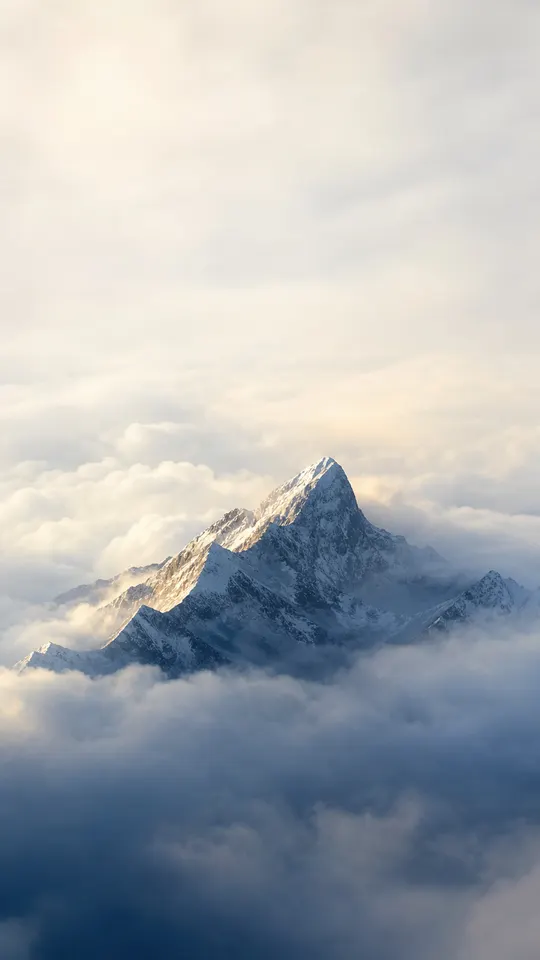
That leaves a middle band, a little below centre, as the safest home for a subject. Peak Above Clouds is a good example: the peak sits just below the middle and a little right of centre, with soft cloud and sky above it, where the clock goes.
Set it on iPhone
On iPhone, Flux doesn't set the wallpaper itself: Save to Photos puts the image in your photo library, and you set it from there. Following Apple's iPhone User Guide:
- Go to the Settings app and tap Wallpaper, then Add New Wallpaper.
- Tap Photos at the top and choose your image.
- Reposition it: “Pinch open to zoom in, drag the image with two fingers to move it, then pinch closed to zoom out.” Keep the subject clear of the clock.
- Tap Add, then choose Set as Wallpaper Pair to use it on both screens, or Customize Home Screen to treat the Home Screen separately.
Apple's steps change between iOS versions. If yours look different, use the version picker on Apple's guide page.
Set it on Android
Android phones don't share one wallpaper menu. Each maker builds its own, and names and steps change between versions. Here are the official steps for two common phones. On anything else, look for wallpaper settings by long-pressing an empty spot on the home screen, or check your maker's help pages.
Google Pixel (Pixel Phone Help)
- Touch and hold an empty space on the Home screen.
- Tap Wallpapers & style, then Change wallpaper (Google notes that for your own photo you may first tap More wallpapers).
- Tap Choose a photo and pick your image.
- If available, choose which screen shows it: Lock screen or Home screen.
- Tap Preview, then Apply.
Samsung Galaxy (Samsung support)
- Touch and hold an empty spot on a Home screen, then tap Wallpaper and style.
- Tap Change wallpapers, then Gallery, select your picture and tap Done.
- Choose Lock screen, Home screen or both, then tap Next.
- Drag and pinch to position the picture, then tap Done.
Samsung's own advice is worth repeating: “Your picture will be cropped to fit the screen, so it's best if you don't crop the picture beforehand.” Pre-cropping throws away the room you need to position it. Samsung also lists extra options, such as Frame and Effect, on One UI 6.1 and later.
Setting it from the Flux app on Android
In Flux on Android you choose Lock, Home or Both, and the app sets the wallpaper directly. It hands Android the whole image without a crop of its own. Google's developer documentation says that in that case the full image is shown “if possible given the image's and device's aspect ratios”. When the shapes differ, your phone decides what to trim. Flux has no crop or position control, so if you want to place the image yourself, use your phone's wallpaper settings above.
Lock screen and home screen are different jobs
The same picture can work on one screen and fail on the other. The lock screen puts a large clock over the top third. The home screen spreads icons and labels over most of the picture. You can set them separately on iPhone (Customize Home Screen), Pixel (Lock screen or Home screen) and Samsung Galaxy (Lock screen, Home screen or both). On iPhone, Apple's guide says you can also “select Blur to blur the wallpaper so the apps stand out” on the Home Screen. That is useful for a detailed image that you love on the lock screen.
Troubleshooting
The subject is cut off at the sides
The screen is narrower than the image. Reposition it in the wallpaper editor by dragging, or choose an image whose subject sits nearer the middle.
There are bars or blank space around the image
The image is being shown whole. Zoom in until it fills the screen, accepting some crop, or choose a portrait image closer to your screen's shape.
It moved or zoomed after I set it
Some home screens give the wallpaper extra room so it can shift as you swipe between pages, which changes what is visible. See the resolution guide for how that extra room works.
The lock screen and home screen crop differently
They are separate settings on many phones. Set and position each one on its own.
Where to start
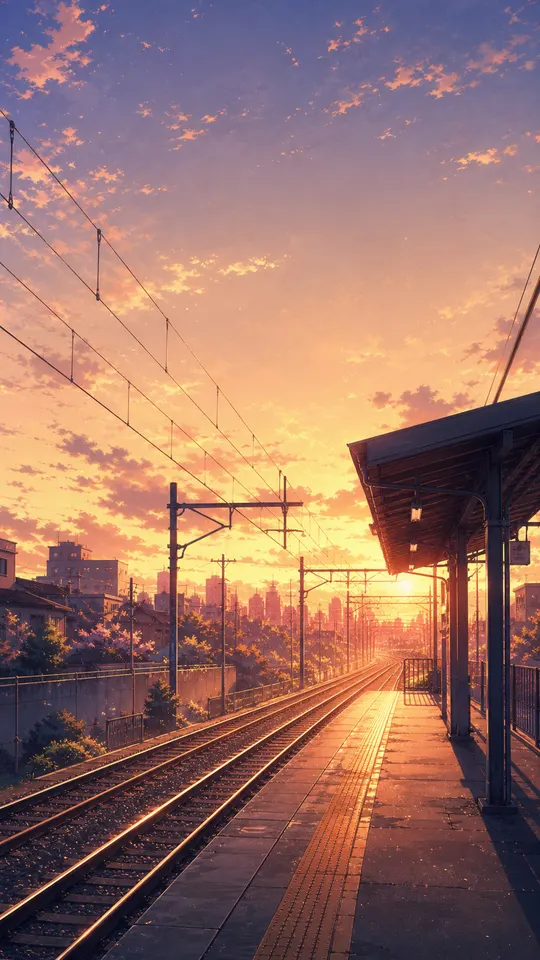
Portrait images with a centred or low subject crop the most gracefully. Try the Nature collection for scenes like Peak Above Clouds, or Minimal for images with nothing near the edges to lose. The scene in the example above is from Sunset Platform Wires in the Anime collection.